AB-3 Developer Guide
- Acknowledgements
- Setting up, getting started
- Design
- Implementation
- Documentation, logging, testing, configuration, dev-ops
- Appendix: Requirements
- Product scope
- User stories
- Use cases
- Use case: Add a student
- Use case: Delete a student based on index
- Use case: Delete student(s) based on tags
- Use case: Edit a student
- Use case: List all students
- Use case: Sort contacts
- Use case: Hide Information
- Use case: Unhide Information
- Use case: Find a student
- Use case: Save Data
- Use case: Clear All Contacts
- Non-Functional Requirements
- Glossary
- Appendix: Instructions for manual testing
- Appendix: Effort
- Appendix: Planned Enhancements
Acknowledgements
CollabSync is built upon AddressBook-Level3, a project developed by the SE-EDU initiative.
We also acknowledge the use of the following third-party libraries: JavaFX, JUnit5
Setting up, getting started
Refer to the guide Setting up and getting started.
Design
Architecture
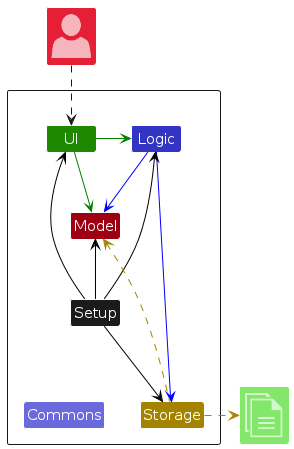
The Architecture Diagram given above explains the high-level design of the App.
Given below is a quick overview of main components and how they interact with each other.
Main components of the architecture
Main (consisting of classes Main and MainApp) is in charge of the app launch and shut down.
- At app launch, it initializes the other components in the correct sequence, and connects them up with each other.
- At shut down, it shuts down the other components and invokes cleanup methods where necessary.
The bulk of the app's work is done by the following four components:
UI: The UI of the App.Logic: The command executor.Model: Holds the data of the App in memory.Storage: Reads data from, and writes data to, the hard disk.Setup: Responsible for the initial configuration and launching of the AddressBook application
Commons represents a collection of classes used by multiple other components.
How the architecture components interact with each other
The Sequence Diagram below shows how the components interact with each other for the scenario where the user issues the command delete 1.
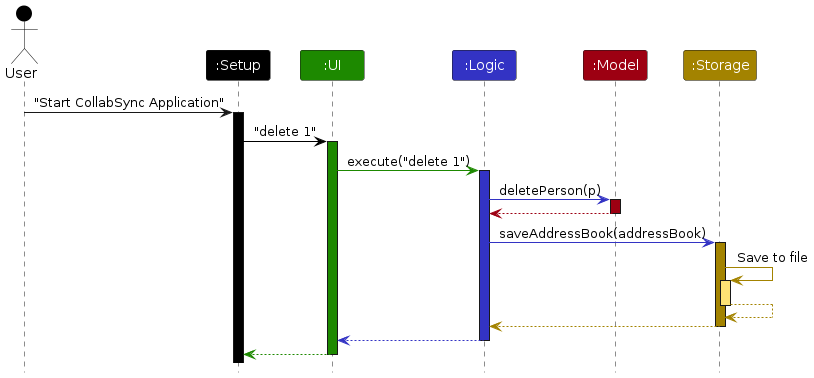
Each of the four main components (also shown in the diagram above),
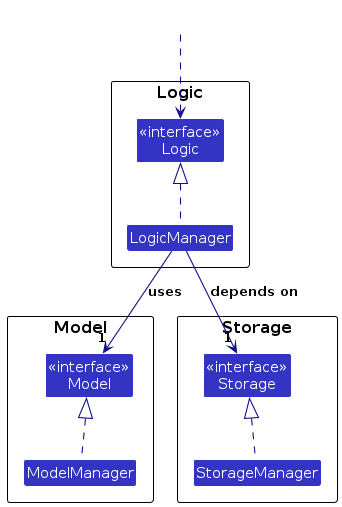
- defines its API in an
interfacewith the same name as the Component. - implements its functionality using a concrete
{Component Name}Managerclass (which follows the corresponding APIinterfacementioned in the previous point.
For example, the Logic component defines its API in the Logic.java interface and implements its functionality using the LogicManager.java class which follows the Logic interface. Other components interact with a given component through its interface rather than the concrete class (reason: to prevent outside component's being coupled to the implementation of a component), as illustrated in the (partial) class diagram below.
The sections below give more details of each component.
UI component
The API of this component is specified in Ui.java
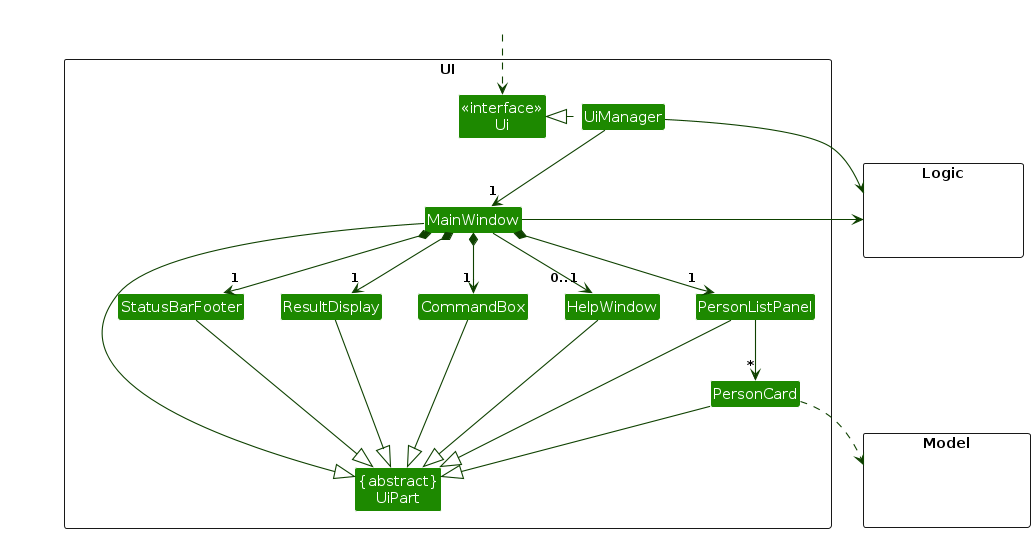
The UI consists of a MainWindow that is made up of parts e.g.CommandBox, ResultDisplay, PersonListPanel, StatusBarFooter etc. All these, including the MainWindow, inherit from the abstract UiPart class which captures the commonalities between classes that represent parts of the visible GUI.
The UI component uses the JavaFx UI framework. The layout of these UI parts are defined in matching .fxml files that are in the src/main/resources/view folder. For example, the layout of the MainWindow is specified in MainWindow.fxml
The UI component,
- executes user commands using the
Logiccomponent. - listens for changes to
Modeldata so that the UI can be updated with the modified data. - keeps a reference to the
Logiccomponent, because theUIrelies on theLogicto execute commands. - depends on some classes in the
Modelcomponent, as it displaysPersonobject residing in theModel.
Logic component
API : Logic.java
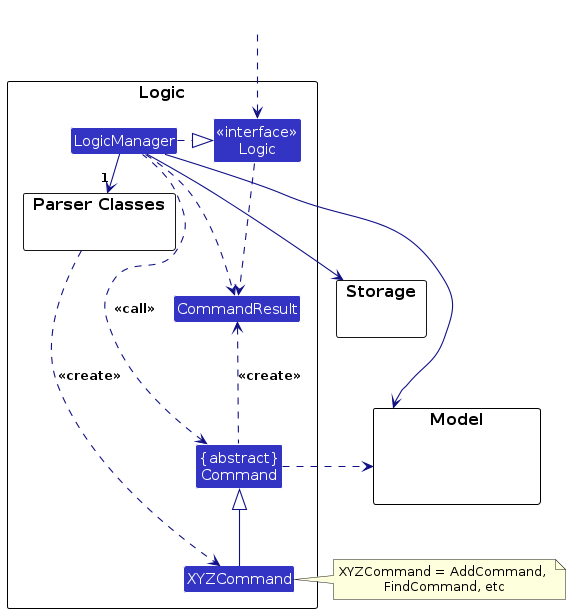
Here's a (partial) class diagram of the Logic component:
The sequence diagram below illustrates the interactions within the Logic component, taking execute("delete 1") API call as an example.
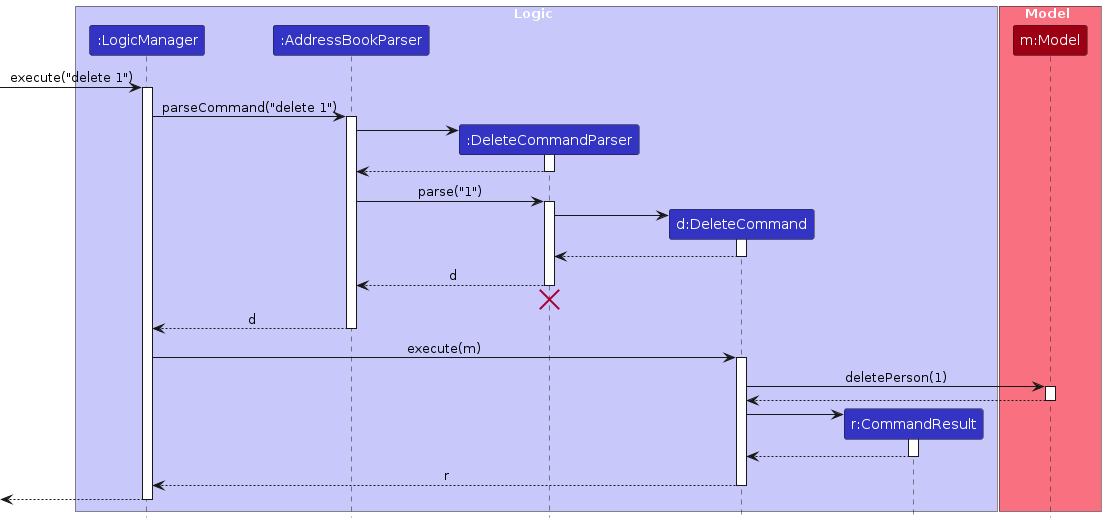
Note: The lifeline for DeleteCommandParser should end at the destroy marker (X) but due to a limitation of PlantUML, the lifeline continues till the end of diagram.
How the Logic component works:
- When
Logicis called upon to execute a command, it is passed to anAddressBookParserobject which in turn creates a parser that matches the command (e.g.,DeleteCommandParser) and uses it to parse the command. - This results in a
Commandobject (more precisely, an object of one of its subclasses e.g.,DeleteCommand) which is executed by theLogicManager. - The command can communicate with the
Modelwhen it is executed (e.g. to delete a student).
Note that although this is shown as a single step in the diagram above (for simplicity), in the code it can take several interactions (between the command object and theModel) to achieve. - The result of the command execution is encapsulated as a
CommandResultobject which is returned back fromLogic.
Here are the other classes in Logic (omitted from the class diagram above) that are used for parsing a user command:
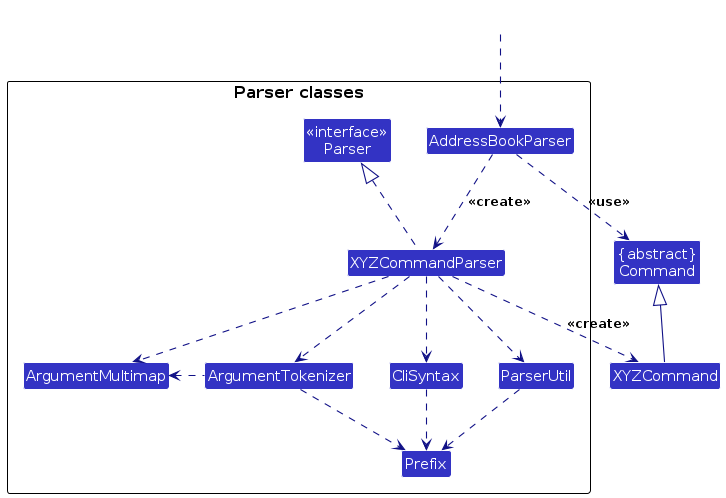
How the parsing works:
- When called upon to parse a user command, the
AddressBookParserclass creates anXYZCommandParser(XYZis a placeholder for the specific command name e.g.,AddCommandParser) which uses the other classes shown above to parse the user command and create aXYZCommandobject (e.g.,AddCommand) which theAddressBookParserreturns back as aCommandobject. - All
XYZCommandParserclasses (e.g.,AddCommandParser,DeleteCommandParser, ...) inherit from theParserinterface so that they can be treated similarly where possible e.g, during testing.
Model component
API : Model.java
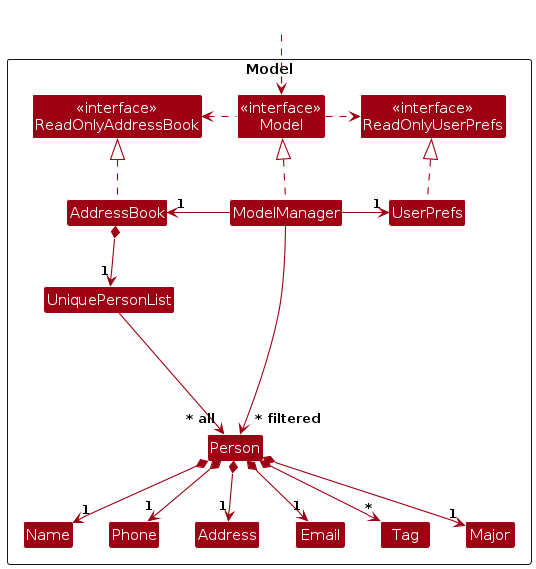
The Model component,
- stores the address book data i.e., all
Personobjects (which are contained in aUniquePersonListobject). - stores the currently 'selected'
Personobjects (e.g., results of a search query) as a separate filtered list which is exposed to outsiders as an unmodifiableObservableList<Person>that can be 'observed' e.g. the UI can be bound to this list so that the UI automatically updates when the data in the list change. - stores a
UserPrefobject that represents the user’s preferences. This is exposed to the outside as aReadOnlyUserPrefobjects. - does not depend on any of the other three components (as the
Modelrepresents data entities of the domain, they should make sense on their own without depending on other components)
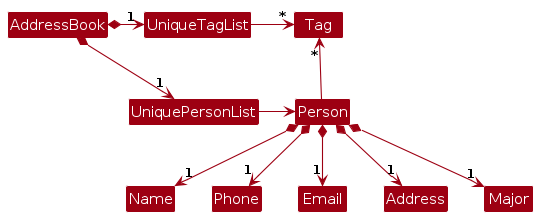
Note: An alternative (arguably, a more OOP) model is given below. It has a Tag list in the AddressBook, which Person references. This allows AddressBook to only require one Tag object per unique tag, instead of each Person needing their own Tag objects.
Storage component
API : Storage.java
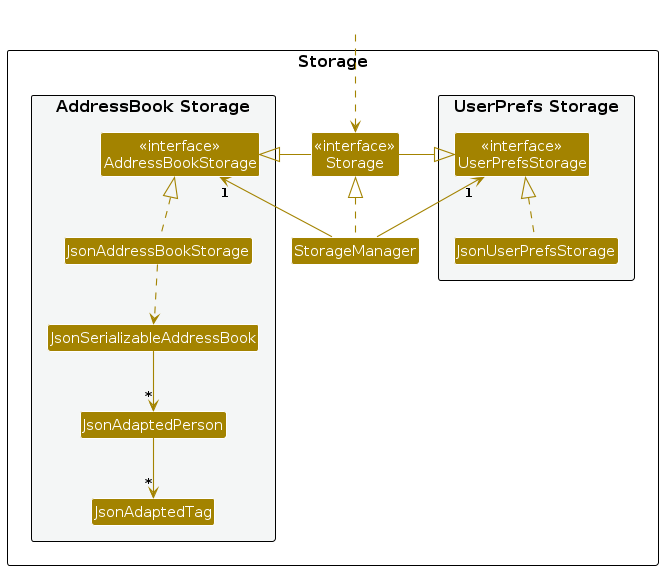
The Storage component,
- can save both address book data and user preference data in JSON format, and read them back into corresponding objects.
- inherits from both
AddressBookStorageandUserPrefStorage, which means it can be treated as either one (if only the functionality of only one is needed). - depends on some classes in the
Modelcomponent (because theStoragecomponent's job is to save/retrieve objects that belong to theModel)
Setup component
The Setup component,
- based on the original implementations of
Main.java,MainApp.java&AppParameters.javain AB3. - now these 3 classes are in a package called
setupfor better coding standards.
Common classes
Classes used by multiple components are in the seedu.address.commons package.
Implementation
This section describes some noteworthy details on how certain features are implemented.
Backup on corrupt workflow
Implementation
The sequence diagram below illustrates the interactions between different components when corrupted data is detected and backupAndDeleteFile(filePath) is called.
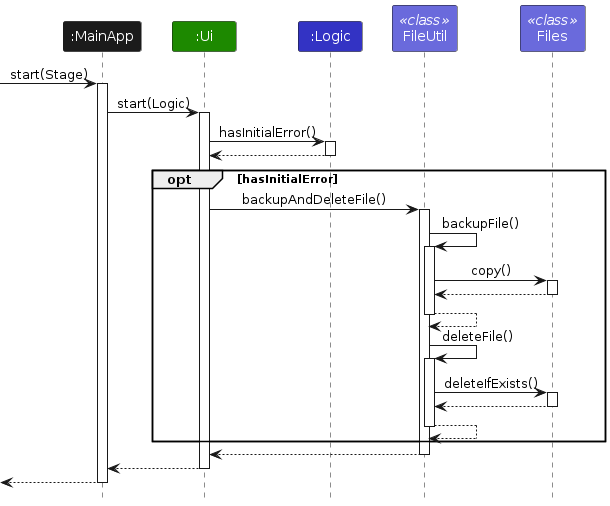
Here's the workflow:
- During
MainApp's initialization,MainAppwill set theLogiccomponent to contain information about whether there is an initial error. - When
MainApp.start()is called, it will invokeUI.start()and pass theLogiccomponent to it. - The
UIwill then check withLogicwhether an initial error exists. - If there is an initial error, the
UIwill display a prompt to the user and wait for user interaction. - Simultaneously, the
UIwill call thebackupAndDeleteFile()method fromFileUtil. backupAndDeleteFile()will gather and prepare all necessary information for the backup and delete.- It will then call the
copy()method fromFilesto complete the backup process. - Finally, the corrupted data file will be deleted after the backup process is done.
Note: The prompt and the backup process are invoked concurrently.
AddCommand workflow
Implementation
The AddCommand is part of the AddressBookParser layer in the application and handles the action of adding the contact.
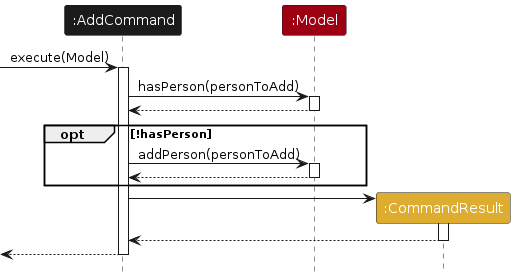
Here's the workflow:
- The
AddCommandis invoked when the user types the commandadd. This is handled in theexecute(Model model)method of theAddCommandclass. TheModelobject, which represents the application's data layer, is passed into the method. - The
AddCommandwill queryModelobject withhasPerson()to ensure no duplicate student before adding. - If
hasPerson()return false,AddCommandwill calladdPerson()ofModelobject to add the new student.
EditCommand workflow
Implementation
The EditCommand is part of the AddressBookParser layer in the application and handles the action of adding the contact.
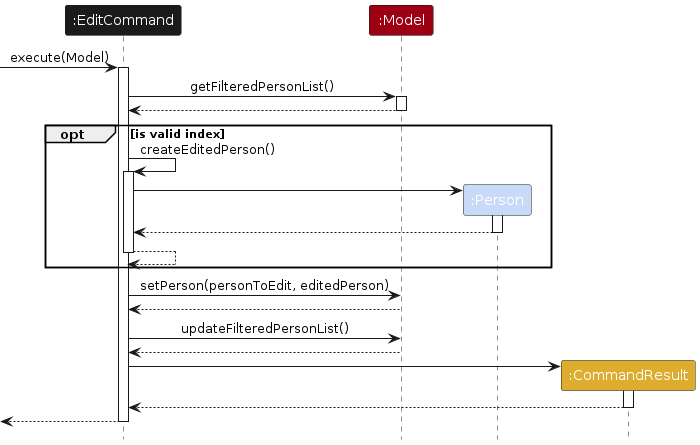
Here's the workflow:
- The
EditCommandis invoked when the user types the commandedit. This is handled in theexecute(Model model)method of theEditCommandclass. TheModelobject, which represents the application's data layer, is passed into the method. - The
EditCommandrequests theModelto retrieve the filtered list ofPersonobjects via the method callmodel.getFilteredPersonList(). This call is made to fetch all the students that the user has in the current view (filtered according to certain criteria). - If the
INDEXparamter is valid,EditCommandwill callcreateEditedPerson()to create a new student with updated details. - The
EditCommandthen invokesetPerson()andupdateFilteredPersonList()methods ofModelobject to update the student.
DeleteCommand workflow
Implementation
The DeleteCommand is part of the AddressBookParser layer in the application and handles the action of deleting the contact(s).
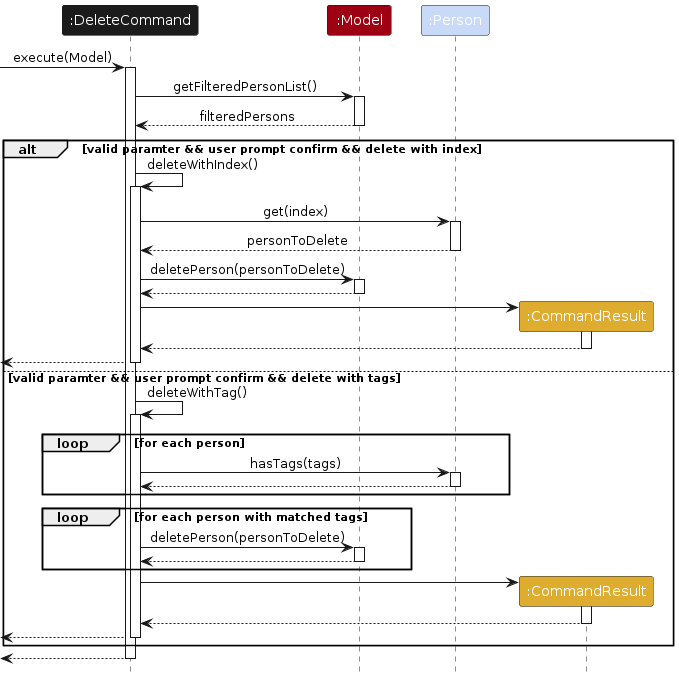
Here's the workflow:
- The
DeleteCommandis invoked when the user types the commanddelete. This is handled in theexecute(Model model)method of theDeleteCommandclass. TheModelobject, which represents the application's data layer, is passed into the method. - The
DeleteCommandrequests theModelto retrieve the filtered list ofPersonobjects via the method callmodel.getFilteredPersonList(). This call is made to fetch all the students that the user has in the current view (filtered according to certain criteria). - Before
DeleteCommandcontinues it's execution,DeleteCommandwill first check the format of the parameters to determine user wants to delete with tags or index. - Next,
DeleteCommandwill prompt user for confirmation before proceed with deletion. - If the command format matches
delete INDEX, the system invokesdeleteWithIndex(). This method retrieves the targetPersonobject based on the provided index, then callsdeletePerson()from theModelobject to remove the student. - If the command format matches
delete t/TAG [ ,t/TAGS], the system invokesdeleteWithTag(). This method filters theList<Person>to find entries matching any of the specified tags (usinghasTags()). Deletes all matched students by callingdeletePerson()from the Model object.
HideCommand workflow
Implementation
The HideCommand is part of the AddressBookParser layer in the application and handles the action of hiding the details of a contact.
This operation is executed when the user triggers the hide command in the system.
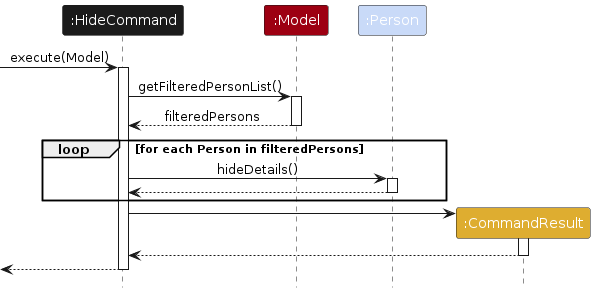
Here's the workflow:
- The
HideCommandis invoked when the user types the commandhide. This is handled in theexecute(Model model)method of theHideCommandclass. TheModelobject, which represents the application's data layer, is passed into the method. - The
HideCommandrequests theModelto retrieve the filtered list ofPersonobjects via the method callmodel.getFilteredPersonList(). This call is made to fetch all the students that the user has in the current view (filtered according to certain criteria). - Once the
filteredPersonListis retrieved, theHideCommanditerates over eachPersonobject in the list and calls the methodperson.hideDetails(). This hides the details of each student in the list. ThehideDetails()method, which is part of thePersonclass, modifies the internal state of thePersonobject, essentially "hiding" the contact's details from the user interface. - After the details are hidden, the
HideCommandreturns aCommandResultindicating the success of the operation. The message"Contact details hidden."is passed to theCommandResultconstructor, along with additional flags that help the UI decide how to update (whether to show a success message or not). - The UI layer will use the
CommandResultobject to display feedback to the user. If successful, the system will notify the user that the contact's details have been hidden.
Note: UnhideCommand also follows a similar workflow, but instead of calling hideDetails(), the method invoked is showDetails()
UI Update Behavior
Below is the frontend update process:
Model State Update:
AfterhideDetails()is called on eachPerson, the internalareDetailsVisibleproperty is set tofalse.Automatic UI Refresh via Data Binding:
In thePersonCardcomponent, the UI elements (such as phone, email, address, and major) are bound to the person'sdetailsVisibleProperty(). For example:phone.visibleProperty().bind(person.detailsVisibleProperty()); phone.managedProperty().bind(person.detailsVisibleProperty()); address.visibleProperty().bind(person.detailsVisibleProperty()); address.managedProperty().bind(person.detailsVisibleProperty()); email.visibleProperty().bind(person.detailsVisibleProperty()); email.managedProperty().bind(person.detailsVisibleProperty()); major.visibleProperty().bind(person.detailsVisibleProperty()); major.managedProperty().bind(person.detailsVisibleProperty());With these bindings in place, when
areDetailsVisibleis set tofalse, these labels automatically become invisible and are excluded from layout calculations.UI Outcome: As a result, once the
HideCommandis executed:The UI refreshes automatically.
The student’s detailed information (phone, email, address, major) is hidden.
Only the basic details (such as the name and tags) remain visible.
If the user issues an
unhidecommand, theshowDetails()method is invoked, settingareDetailsVisibleback totrueand causing the UI to re-render the full details.
FindCommand workflow
Implementation
The FindCommand is part of the AddressBookParser layer and handles searching for students based on keywords.
This operation is executed when the user triggers the find command in the system.
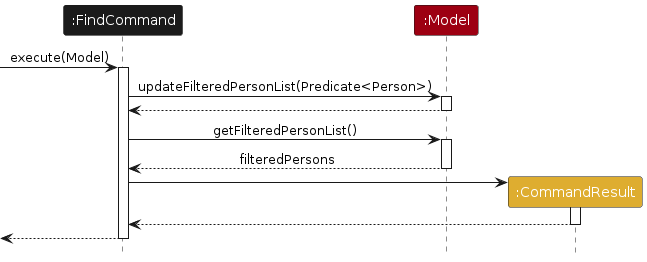
Here's the workflow:
- The user types the command
find KEYWORD.... This is handled in theexecute(Model model)method of theFindCommandclass. - The
FindCommandcreates aPersonContainsKeywordsPredicateobject with the specified keywords. - The
FindCommandcallsmodel.updateFilteredPersonList(Predicate<Person>)to update the filtered list ofPersonobjects. This filters out any students whose names do not match the given keywords. - The
FindCommandcallsmodel.getFilteredPersonList()to get the size of the list displayed. - A
CommandResultis returned, containing a success message that indicates how many students were found (e.g.,"X persons listed!"). - The UI layer reads the
CommandResultand refreshes the display to show only those students who match the keywords.
Note:
- The search is case-insensitive, meaning a keyword "alice" will match both "Alice" and "alice" in the student's name.
ListCommandworks similar to the above, but thePredicate<Person>is always set totrue, which makes it display all the contacts by default.
SortCommand Workflow
Implementation
The SortCommand is part of the AddressBookParser layer and handles searching for students based on keywords.
This operation is executed when the user triggers the sort command in the system.
If identical names are in the contact, the contacts will be sorted using their phone numbers.
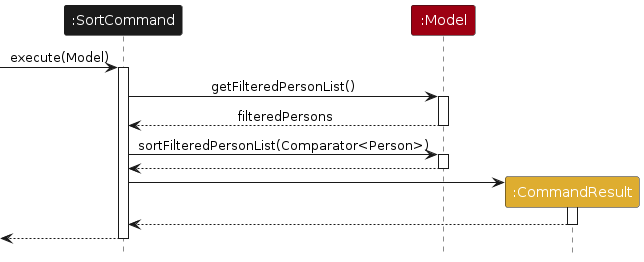
Here's the workflow:
- The user enters the command
sort ascorsort desc. - In the
execute(Model model)method ofSortCommand, the following steps occur:- The model is checked to ensure it is not null.
- The filtered student list is retrieved via
model.getFilteredPersonList(). - Empty List Check:
If the list is empty, the command immediately returns aCommandResultwith the message"No contacts to sort." - Sorting Comparator:
A comparator is defined that first compares students by name, and in cases where names are equal, by phone number:Comparator<Person> comparator = Comparator.comparing(Person::getName) .thenComparing(Person::getPhone); - Order Adjustment:
If the command is to sort in descending order (isAscendingis false), the comparator is reversed. - Sorting the List:
The comparator is then passed to the model viamodel.sortFilteredPersonList(comparator), which reorders the filtered list. - Result Generation:
Finally, a newCommandResultis created with a message indicating the sort order, e.g.,"Contacts sorted in ascending order."or"Contacts sorted in descending order."
Note: The sort operation does not modify the underlying data permanently; it only reorders the displayed filtered list in the UI.
Documentation, logging, testing, configuration, dev-ops
Appendix: Requirements
Product scope
Target user profile:
- is a National University of Singapore student
- need to manage project team contacts
- track relationships between classmates across multiple courses
- prefer desktop apps over other types
- can type fast
- prefers typing to mouse interactions
- is reasonably comfortable using CLI apps
Value proposition: manage contacts for NUS students faster than a typical mouse/GUI driven app
User stories
Priorities: High (must have) - * * *, Medium (nice to have) - * *, Low (unlikely to have) - *
| Priority | As a … | I want to … | So that I can… |
|---|---|---|---|
* * * | user | add a new student | store and retrieve essential information easily |
* * * | user | delete a student | remove outdated or irrelevant entries |
* * * | user | find a student by name | quickly locate specific student |
* * | user | data save automatically | so that I never lose my contacts even if the app crashes |
* * | user | find students by course | quickly locate students with a specific course |
* * | user | clear all contacts at once | reset the app for a new semester |
* * | user | delete students by course | remove related entries after a course ended |
* * | user | edit student details | keep their details up-to-date |
* * | user | sort student details | keep their details in an orderly manner |
* * | user | list all students | see all my saved contacts at once |
* * | new user | view a help menu | quickly learn how to use the application |
* | user | remember my last search | don't need to type it again |
* | privacy-conscious user | hide students' information | hide sensitive details when others view my screen |
* | privacy-conscious user | unhide students' information | access full contact details when needed |
* | user with many students in the address book | search for contacts fuzzily | find a student even if I do not correctly know their names |
* | user with many students in the address book | the application to load quickly | access my information without delay |
Use cases
(For all use cases below, the System is the CollabSync and the Actor is the user, unless specified otherwise)
Use case: Add a student
MSS
User requests to add a new student by specifying Name, Phone, Email, Address, Major and Tags(if any) (e.g., using
add n/NAME p/PHONE e/EMAIL a/ADDRESS m/MAJOR t/[TAGS]).CollabSync validates the details (e.g., checks phone format, email format, etc.).
CollabSync saves the new student to the address book.
Use case ends.
Extensions
2a. User provides incomplete or invalid details. (e.g., phone number format is invalid)
2a1. CollabSync shows an error message.
Use case ends.
2b. User tries to add a contact that already exists (e.g., same Name and Phone).
2b1. CollabSync rejects the duplicate entry and shows an error message.
Use case ends.
Use case: Delete a student based on index
MSS
User requests to list students (e.g., using the
listcommand).CollabSync shows a list of students with their Name, Phone, Email, Address, Major and Tags(if any) in an indexed format.
User requests to delete a specific student in the list by index (e.g.,
delete 3).CollabSync prompts a popup box to request user to confirm their deletion.
User enters the confirm button.
CollabSync deletes the student with the given index.
Use case ends.
Extensions
2a. The list is empty.
2a1. CollabSync informs the user that there are no contacts to delete.
Use case ends.
3a. The given index is invalid.
3a1. CollabSync shows an error message.
Use case resumes at step 2.
4a. Cancel button or
xwas pressed.4a1. Contact is not deleted. Deletion canceled.
Use case resumes at step 2.
Use case: Delete student(s) based on tags
MSS
User requests to list students (e.g., using the
listcommand).CollabSync shows a list of students with their Name, Phone, Email, Address, Major and Tags(if any) in an indexed format.
User requests to delete a specific student in the list by the tags (e.g.,
delete t/HSA1000).CollabSync prompts a popup box to request user to confirm their deletion.
User enters the confirm button.
CollabSync deletes the student with the given index.
Use case ends.
Extensions
2a. The list is empty.
2a1. CollabSync informs the user that there are no contacts to delete.
Use case ends.
3a. The given index is invalid.
3a1. CollabSync shows an error message.
Use case resumes at step 2.
4a. Cancel button or
xwas pressed.4a1. Contact is not deleted. Deletion canceled.
Use case resumes at step 2.
Use case: Edit a student
MSS
User requests to list students (e.g., using the
listcommand).CollabSync shows a list of students.
User requests to edit a specific student.
CollabSync updates the details of the student.
Use case ends.
Extensions
2a. The list is empty. Use case ends.
3a. The given index is invalid.
- 3a1. CollabSync shows an error message. Use case resumes at step 2.
3b. The new tags entered by user are of invalid format.
- 3b1. CollabSync shows an error message. Use case resumes at step 3.
Use case: List all students
MSS
User enters the
listcommand.CollabSync displays a list of all students with their Name, Phone, Email, Address, Major, and Tags (if any) in an indexed format.
Use case ends.
Extensions
- 2a. No students in the address book:
2a1. CollabSync informs the user that the list is empty.
Use case ends.
Use case: Sort contacts
MSS
User enters a sort command with a specified order (e.g., using 'sort asc' or 'sort desc').
Sorts the contact list in the specified order based on Name, followed by Phone Number if names are identical.
CollabSync displays the sorted contact list.
Use case ends.
Extensions
2a. No contacts found in the list.
2a1. CollabSync informs the user that there are no contacts to sort.
Use case ends.
2b. User enters an invalid sorting order.
2b1. CollabSync informs the user of the invalid input and provides the correct format.
Use case ends.
Use case: Hide Information
MSS
User enters the
hidecommand.CollabSync automatically hides the contact details of all students currently shown in the application, except for Name and Tags (if they were displayed previously).
Use case ends.
Extensions
- 2a. Information is already hidden:
2a1. The information of the contacts in the current window currently will remain hidden.
Use case ends.
Use case: Unhide Information
MSS
User enters the
unhidecommand.CollabSync automatically reveals all the hidden information of the students currently in the application.
Use case ends.
Extensions
- 1a. No information was hidden:
1a1. The information of the contacts in the current window will remain revealed.
Use case ends.
Use case: Find a student
MSS
User enters a search term. (e.g., using
find KEYWORD).CollabSync searches for any matching students based on the search term in their Name, Phone, Email, Major and Tags.
Use case ends.
Extensions
- 2a. No matching students found
2a1. CollabSync informs the user that no results match the search.
Use case ends.
Use case: Save Data
MSS
User performs an action that modifies the data (e.g., adding, editing, or deleting a contact).
CollabSync automatically saves the updated data to a local file (e.g.,
data/addressbook.json).Use case ends.
Extensions
2a. Saving data fails (e.g., permission issues or disk is full).
2a1. CollabSync shows an error message indicating that the save failed.
Use case ends.
2b. Data file is corrupted or unreadable.
2b1. CollabSync shows an error message about the corrupted file.
Use case ends.
Use case: Clear All Contacts
MSS
User enters the
clearcommand.CollabSync clears all entries from the address book.
Use case ends.
Extensions
- 2a. User clears an empty contact list:
2a1. CollabSync still clears the contact.
Use case ends.
Non-Functional Requirements
- Should work on any mainstream OS as long as it has Java
17or above installed. - Should be able to hold up to 1000 students without a noticeable sluggishness in performance for typical usage.
- A user with above average typing speed for regular English text (i.e. not code, not system admin commands) should be able to accomplish most of the tasks faster using commands than using the mouse.
- The product should be for a single user.
- Response to any use action should become visible within 5 seconds.
- The system should be useable by non-technical users.
- Command error messages should be clear and informative enough that even non-technical users can understand the issues.
- The data should be stored locally and should be in a human editable text file.
- The software should not depend on your own remote server.
Glossary
- Mainstream OS: Windows, Linux, Unix, MacOS
- CLI (Command-Line Interface): A text-based interface for interacting with the application through typed commands.
- GUI (Graphical User Interface): The visual interface of the application, including windows, buttons, and forms.
- Contact: An entry in the address book containing details such as name, phone number, email, and address.
- Students: NUS Students
Appendix: Instructions for manual testing
Given below are instructions to test the app manually.
Note: These instructions only provide a starting point for testers to work on; testers are expected to do more exploratory testing.
Launch and shutdown
Initial launch
Download the jar file and copy into an empty folder
Double-click the jar file
Expected: Shows the GUI with a set of sample contacts (the window size may not be optimum).
Saving window preferences
Resize the window to an optimum size
Move the window to a different location
Close the window
Re-launch the app by double-clicking the jar file
Expected: The most recent window size and location is retained.
Displaying help window
Displaying help window
Test case:
help
Expected: A help window popped out. List of commands and their format in the help window.Test case:
help aaaaaaa
Expected: A help window popped out. List of commands and their format in the help window.
Adding a student
Adding a student
Test case:
add n/Li Shi Rei p/98765432 e/shireiHG@u.nes.edu a/21 Lower Kent Ridge Road m/Prompt Engineering t/genius:trivial
Expected: Student is successfully added to the list. All details are displayed correctly. The contact list updates to show the new student.Test case:
add n/Saitama p/23456789 e/atama@u.nos.edu a/21 Lower Kent Ridge Road m/Sport Science t/friends:trivial t/HDM1000:module(different tags)
Expected: Student is successfully added to the list. All details are displayed correctly. The contact list updates to show the new student.Test case:
add n/Saitama p/23456789 e/atama@u.nos.edu a/21 Lower Kent Ridge Road m/Sport Science t/friends:trivial t/HDM1000:module(same as previous test case)
Expected: Student not added to the list. UI displays "This student already exists in the address book".Test case:
add John Doe
Expected: Student not added to the list. Error details shown in the status message.Test case:
add n/ t/ p/
Expected: Student not added to the list. Error details shown in the status message.
Listing all students
Listing all students
Test case:
list
Expected: All students are display correctly.Test case:
list abcdefg
Expected: All students are display correctly.
Hiding and Unhiding information
Hiding information
Test case:
hide
Expected: All students' details is hidden, with only their names and tags shown.Test case:
hide(same as previous test case)
Expected: All students' details remain hidden, with only their names and tags shown.
Unhiding information
Test case:
unhide
Expected: All students' hidden details are displayed.Test case:
unhide(same as previous test case)
Expected: All students' details remain displayed.
Sorting students
Sorting students in ascending order (A → Z)
- Test case:
sort asc
Expected: Students are sorted by their name in ascending order. Ties in names are broken by phone numbers.
- Test case:
Sorting students in descending order (Z → A)
- Test case:
sort desc
Expected: Students are sorted by their name in descending order. Ties in names are broken by phone numbers.
- Test case:
Sorting students in other order
- Test case:
sort xyz
Expected: The student list remains the same. Error details shown in the status message.
- Test case:
Editing a Student
Editing a student while all students are being shown
Prerequisites:
- List all students using the
listcommand. - Ensure there are multiple students in the list.
- List all students using the
Test case:
edit 1 n/John Doe p/91234567 e/johndoe@example.com a/123 Main Street m/Computer Science t/friend
Expected:- The student at index 1 is updated with the following details:
- Name: John Doe
- Phone: 91234567
- Email: johndoe@example.com
- Address: 123 Main Street
- Major: Computer Science
- Tag: friend
- A success message is shown, and the UI reflects the updated information.
- The student at index 1 is updated with the following details:
Test case:
edit 2 p/98765432 a/456 New Road
Expected:- The student at index 2 is updated with the new phone number and address only.
- All other fields (name, email, major, tags) remain unchanged.
- A confirmation message is displayed.
Test case:
edit 1 n/ p/
Expected:- The command fails because required fields (e.g., name) are empty or missing.
- An error message is displayed in the status message.
Test case:
edit 100 n/Jane Doe
Expected:- If there is no student at index 100, the command fails.
- An error message is displayed in the status message.
Test case:
edit 1 e/invalidEmailFormat p/abcde
Expected:- The command fails due to invalid email and phone number formats.
- An error message is displayed in the status message.
Deleting a student
- Deleting a student while all students are being shown
Prerequisites:
- List all students using the
listcommand. - Ensure there are multiple students in the list.
- List all students using the
Test case:
delete 1
Expected: First student entry is deleted from the list. Details of the deleted students shown in the status message.Test case:
delete t/friends:trivial
Expected: Students with same tag and priority are deleted. Details of the deleted students shown in the status message.Test case:
delete 0
Expected: No student is deleted. Error details shown in the status message. Status bar remains the same.Other incorrect delete commands to try:
delete,delete x,...(where x is larger than the list size)
Expected: Similar to previous.
Saving data
Dealing with missing data files
Close the app
Delete
addressbook.jsonin thedatafolderRe-launch the app
Expected: Shows the GUI with a set of sample contacts.
Dealing with corrupted data files
Close the app
Modify addressbook.json in the data folder by inserting random data at either the start or end of the file
Re-launch the app
Expected: A pop-up appears showing a warning message. The corruptedaddressbook.jsonis backed up toaddressbook_old.json. The app will continue with an empty list after pressing the 'OK' button.
Appendix: Effort
Difficulty Level for the Project
CollabSync was significantly more difficult than the AB3 application. We incorporated new commands and functionalities to suit better our target audience, which were university students. Incorporating newer, but more relevant features such as the refinement of tags with their various levels of priorities, as well as including a new field: "Major" made our project much harder as we had to modify all the other relevant classes, as well as test classes to support these critical features.
Challenges Faced for the Project
- Challenge 1 : Revamping the UI to make our application look more appealing to users through various coloured words and tags.
- Challenge 2 : Addition of the newer features such as the introduction of corrupt data handling for corrupted files.
- Challenge 3 : Intense workload due to a 4-person team.
Effort Required for the Project
- Various, new commands are added while existing commands are refined to better cater to university students more closely for CollabSync.
- Refactoring of code to ensure our code follows certain principles taught in the CS2103T module: No deep nesting, KISS, SLAP and so on.
Achievements of the Project
The AB3 application is now refined through the addition of new features, as well as refinement of existing features. University students are more able to effectively and efficiently manage their contacts using CollabSync.
Appendix: Planned Enhancements
- Refine the warning message for edit : For edit command, when one enters a large index value, such as
edit 100000000000000, the warning message does not showAt least one field to edit must be provided.due to buffer overflow errors. Instead, it showsInvalid command format! [More error message ....]. It would be good to fix this in future. - Enhanced parameter validation : Unnecessary parameters provided with commands, such as entering
help 12345, will trigger a clear warning message that indicates the correct usage. This enhancement ensures that users receive immediate feedback, guiding them to use commands as intended and reducing potential confusion. - Help Window refinement : As a future enhancement, we plan to implement dedicated help commands for each command entered.
For example,
help addallows users to seek help on theaddcommand specifically. This refinement offers users a more detailed, feature-specific guidance on the respective commands. This will make it easier for users to understand and effectively utilize each command, thereby enhancing overall usability and user experience.